Calculating someone's age seems easy until you need the exact answer.
Most people subtract the birth year from the current year and call it done. But that only gives you an estimate. If the person hasn't had their birthday yet this year, you're already off by one full year.
This is more than just a small math error. In real situations filling out a legal form, checking eligibility for a benefit, verifying an applicant's age, or calculating a retirement date one year off can cause a real problem.
This guide shows you the right way to calculate age manually, in Excel, in Google Sheets, and online with clear examples that anyone can follow. No complicated formulas, no confusing theory.
Why Simple Subtraction Gets It Wrong
Let's say the current year is 2026 and someone was born in 1996.
2026 − 1996 = 30
Simple enough. But here's the problem.
If today is June 27 and their birthday falls on November 12, they haven't turned 30 yet. They're still 29 and won't turn 30 for another four and a half months.
Simple subtraction ignores this completely. It assumes every person has already had their birthday this year, which is only true half the time.
- Year difference the gap between the two calendar years
- Month has the birth month already passed this year?
- Day has the birth day already passed this month?
Only when all three line up correctly will you get the right answer. Let's go through each method step by step.
Method 1: How to Calculate Age Manually
The manual method works like regular subtraction but applied to calendar units: days, months, and years.
The one rule you must follow is this: always work right to left Days first, then Months, then Years.
This order matters because you may need to borrow from a larger unit when the smaller one doesn't have enough to subtract from. It's the same logic as borrowing in regular arithmetic, just applied to time.
Step 1: Write the Dates in Three Columns
Start by setting up your dates in a clear layout. Put today's date on top and the birth date directly below it, aligned in three separate columns for Year, Month, and Day.
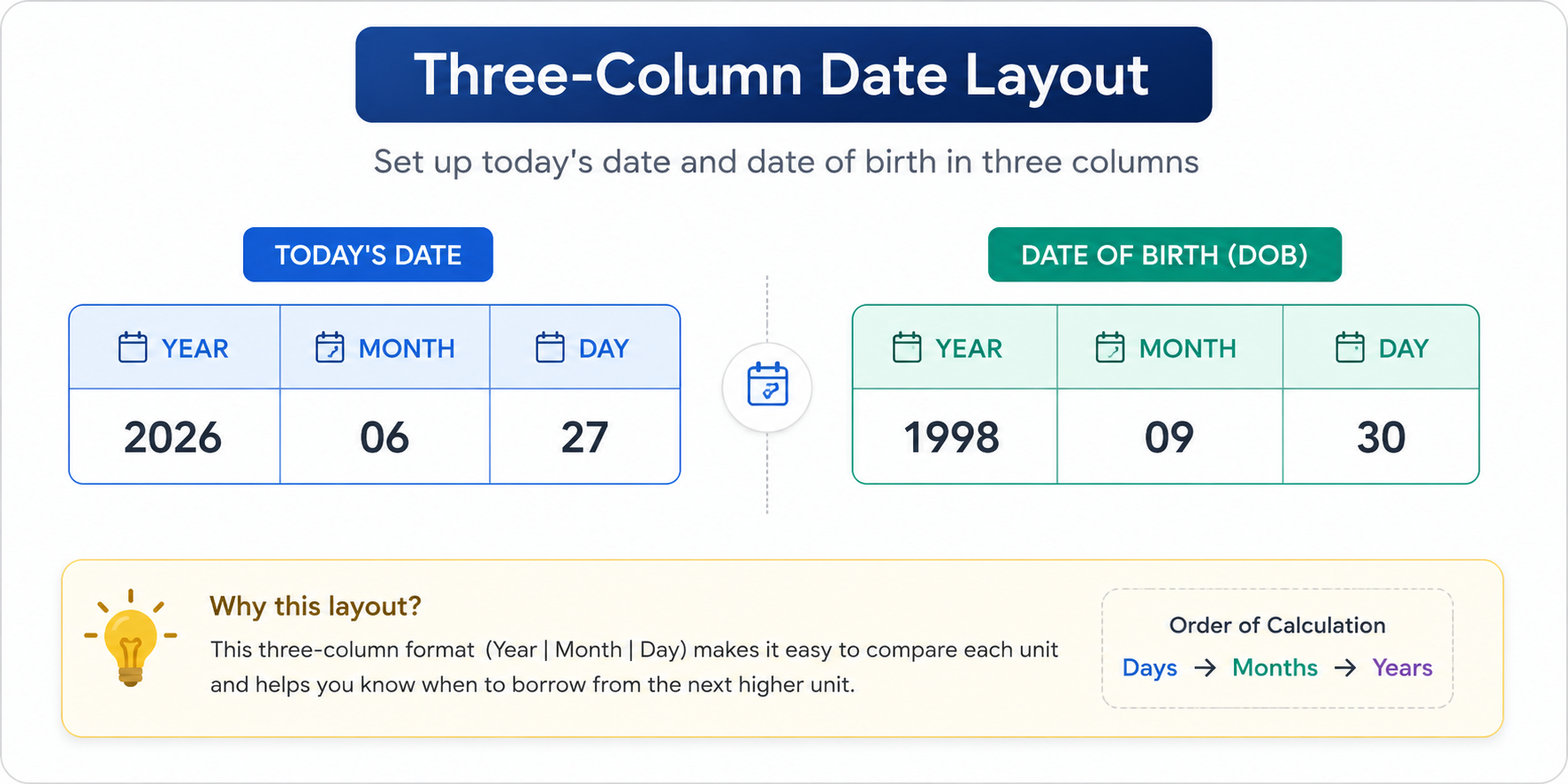
This visual setup makes it much easier to see where borrowing is needed before you start calculating.
Step 2: Subtract the Days
Look at the Day column. Is the top number smaller than the bottom number?
If yes, you cannot subtract directly. You need to borrow 1 month from the Month column. Convert that borrowed month into days using the number of days in the previous month, not the current one and add those days to your top day number. Then subtract.
If the top number is already larger, just subtract normally.
Step 3: Subtract the Months
Now look at the Month column. Is your remaining top month number smaller than the birth month?
If yes, borrow 1 year from the Year column. That 1 year equals 12 months. Add those 12 months to your current month number, then subtract the birth month.
Step 4: Subtract the Years
Finally, subtract the birth year from whatever is left in the Year column. The numbers you have across all three columns are your final answer: exact age in years, months, and days.
Let's walk through a real example where borrowing is required in both the days and months columns this is the most common situation you'll encounter.
Today's Date: June 27, 2026
Date of Birth: September 30, 1998
Set up the columns:
| Year | Month | Day | |
| Today: | 2026 | 06 | 27 |
| DOB: | 1998 | 09 | 30 |
Calculating the Days: 27 < 30 → borrow 1 month from 06 → 05. Previous month (May) = 31 days. 27 + 31 = 58. 58 − 30 = 28 days.
Calculating the Months: 5 < 9 → borrow 1 year from 2026 → 2025. 5 + 12 = 17. 17 − 9 = 8 months.
Calculating the Years: 2025 − 1998 = 27 years.
✅ Final Answer: 27 years, 8 months, and 28 days
Method 2: How to Calculate Age in Excel
If you're working with a list of dates whether for HR records, school registrations, or financial reports doing this manually for every row would take forever. Excel handles it instantly and without errors.
The function to use is called DATEDIF. It's built into Excel and calculates the exact time between two dates.
Basic DATEDIF Syntax
=DATEDIF(start_date, end_date, "unit")
- start_date the date of birth
- end_date today's date (use
TODAY()to make it update automatically) - unit what you want to calculate (years, months, or days)
Full Age Formula in One Cell
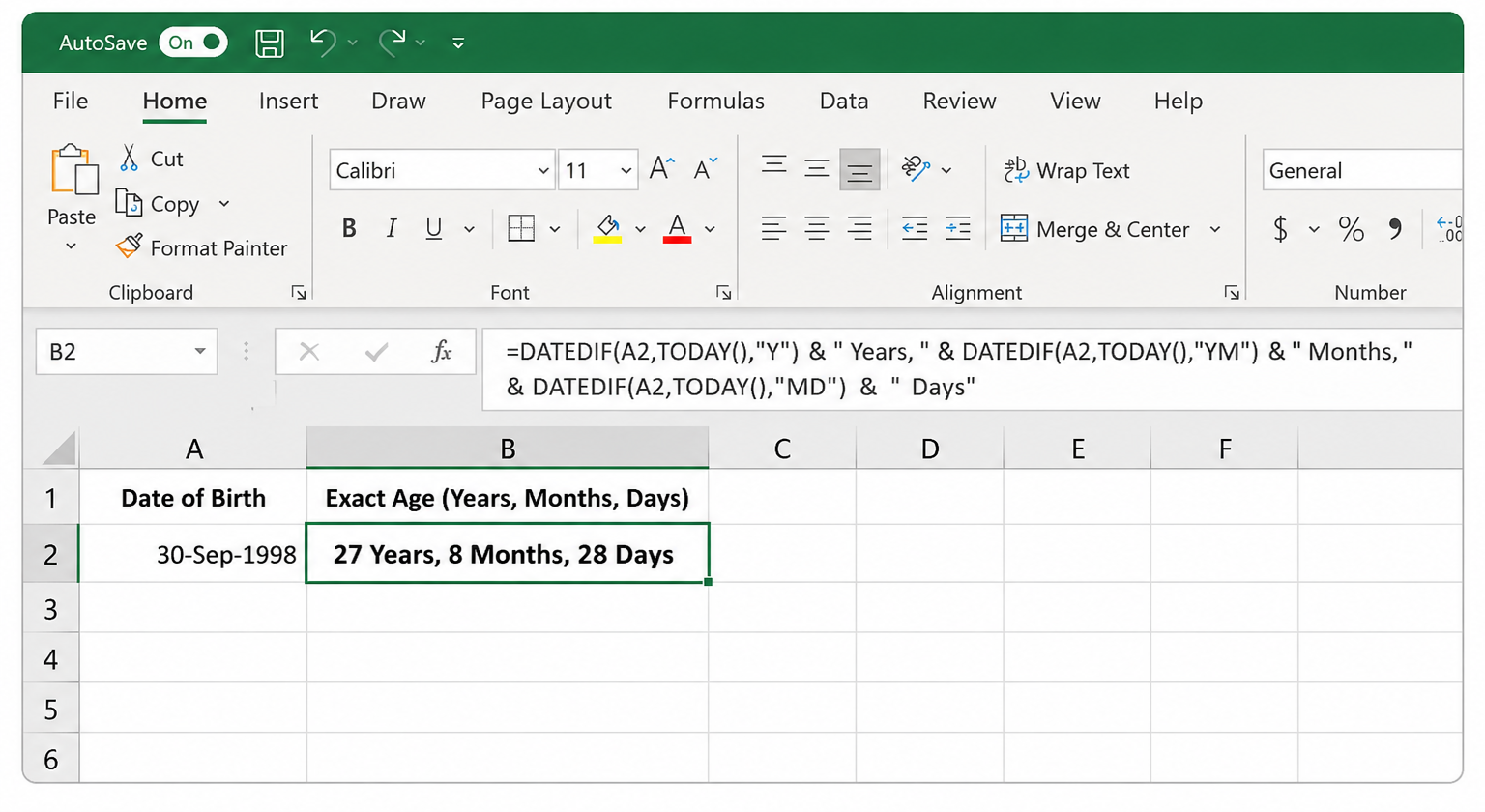
Assume the date of birth is entered in cell A2. This formula returns the complete age years, months, and days all in one cell:
=DATEDIF(A2, TODAY(), "Y") & " Years, " & DATEDIF(A2, TODAY(), "YM") & " Months, " & DATEDIF(A2, TODAY(), "MD") & " Days"
What the Unit Codes Do
| Code | What It Returns |
|---|---|
"Y" | Total completed years between the two dates |
"YM" | Remaining months after the last full year |
"MD" | Remaining days after the last full month |
The reason we use "YM" instead of just "M" is important. Using "M" would give you the total number of months between the two dates which could be something like 332 months. That's not useful. "YM" gives you only the leftover months after whole years are removed, which is what you actually need.
TODAY() as the end date if you want the formula to update automatically every day. If you need to calculate age as of a specific date. for example, someone's age on January 1, 2025 replace TODAY() with that date in quotes: "2025-01-01".
Method 3: How to Calculate Age in Google Sheets
The exact same DATEDIF formula works in Google Sheets without any changes. Google Sheets does show DATEDIF in its autocomplete suggestions, which makes it slightly easier to use than Excel.
Enter the date of birth in cell A2 and paste this formula in any other cell:
=DATEDIF(A2, TODAY(), "Y") & " Years, " & DATEDIF(A2, TODAY(), "YM") & " Months, " & DATEDIF(A2, TODAY(), "MD") & " Days"
The output will be identical to Excel. Both applications reference the same Gregorian calendar system and handle leap years the same way.
If you only need the age in years. for example, to check if someone is above 18 this shorter formula is enough:
=DATEDIF(A2, TODAY(), "Y")
This returns a single number: the person's age in completed years.
Method 4: Use an Online Age Calculator
If you don't need a spreadsheet and just want a quick answer, an online age calculator is the fastest option.
The OrkaTool Age Calculator calculates your exact age in years, months, and days the moment you enter a date of birth. It handles leap years, varying month lengths, and calendar boundaries automatically no formulas required.
This is especially useful when you need a one-time calculation and don't want to open a spreadsheet or do the manual math.
How Leap Years Affect Age Calculations
For most people, leap years don't change anything in everyday age calculations. But there are two situations where they matter.
If You Were Born on February 29
Leap day birthdays only occur every four years. In the years in between, different systems handle this differently:
- Most countries and legal systems recognize your birthday on March 1 in non-leap years.
- Some insurance companies default to February 28 instead.
- Some automated systems may handle this inconsistently, so it's worth checking if your birthday ever comes up wrong in a software application.
If You're Counting Age in Total Days
If you ever need to calculate someone's exact age as a raw number of days for medical records, scientific research, or detailed record-keeping you must account for every leap year in the range. Each leap year adds one extra day to the total count.
Spreadsheet functions like DATEDIF and TODAY() handle this for you automatically. If you're writing your own code or doing the calculation by hand, you'll need to count leap years manually.
Quick Comparison: Which Method Should You Use?
| Situation | Best Method |
|---|---|
| One quick calculation | Online calculator |
| Manual verification without a device | Manual borrowing method |
| Working with a list of dates in a file | Excel or Google Sheets formula |
| Building a website or app | Programming language date functions |
3 Common Mistakes to Avoid
Frequently Asked Questions
The most accurate method is using a calendar-aware formula like Excel's =DATEDIF() or a reliable online age calculator. These tools reference real calendar data, handle leap years correctly, and account for varying month lengths no mental math needed.
Your age increases by one year on your birthday at midnight. Legally, you remain your current age until the calendar date matches your official date of birth.
In Excel or Google Sheets, enter your next birthday date in a cell and subtract TODAY() from it. The result gives you the number of days remaining. You can also use the OrkaTool Days Until Birthday Calculator for a quick answer.
Differences usually happen when a calculator uses fixed-length month approximations like assuming every month has 30.42 days instead of tracking real calendar dates. A proper age calculator maps calculations to actual month boundaries, which gives you an exact and consistent result.
Many life insurance companies use a system called "Age Nearest." If you are 34 years and 5 months old, they rate you as age 34. But once you pass the 6-month mark, they round up and price your premium as if you were already 35. This can affect how much you pay, so it's worth knowing before you apply for a policy.
Legally, a person turns a year older on the anniversary of their birth date not the day after. This applies to most legal milestones: driving age, voting age, retirement eligibility, and similar thresholds.
Yes, but only approximately. Without the exact birth day, you can calculate the age in years and months, but not in exact days. If you need a precise result, you'll need the full date of birth.
Chronological age is the straightforward calculation based on your date of birth the number of years, months, and days you have lived. Biological age, on the other hand, refers to how old your body appears based on health markers like fitness level, cellular health, and lifestyle habits. The methods in this guide calculate chronological age only.
Conclusion
Getting someone's rough age is easy. Getting the exact age down to the day takes just a little more care.
For manual calculations, the key is to always work right to left: days first, then months, then years. Borrow when needed, and always borrow from the correct unit. Once you do it once, the logic becomes second nature.
For anything involving a list of dates, spreadsheet formulas like DATEDIF are far more practical. They handle every edge case leap years, month length differences, and calendar boundaries without any manual effort on your part.
And if you just need a quick one-time answer, an online calculator is the fastest option of all.